
New Word Search Options: Word Lists Above the Grid and Four Answer Styles
Small layout choices can make a big difference to a puzzle book. You might prefer the word list above the grid, or want a solution page that uses shading instead of outlines.
The latest A Book Creator updates give you more control over both.
Place Your Word List Above the Puzzle
The Word Search Tool now lets you choose where your word list appears.
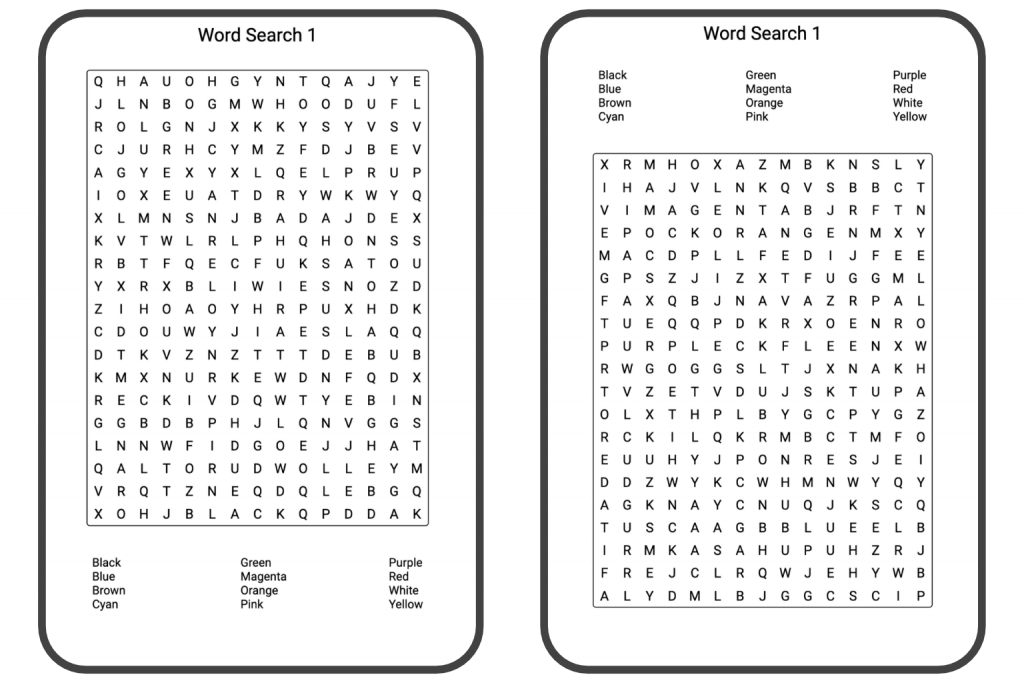
In Title/Words Settings, find Word List Position and select:
- Below Puzzle: The default layout.
- Above Puzzle: Places the list before the grid.
When you choose Above Puzzle, the page follows this order: puzzle title, optional subtitle, optional word list title, word list, and grid.
The position option works for both Word Search and Number Search. Your existing list choices still apply, including column alignment, checkboxes, clues, and blank lines.
This setting is for pages that contain both the list and grid. It is hidden when Two Page Puzzles or Do not include word list is selected.
Choose From Four Answer-Marking Styles
Both Word Search and One Word Search now offer an Answer Marking Style dropdown under Puzzle in Title/Words Settings.
Rounded Outline
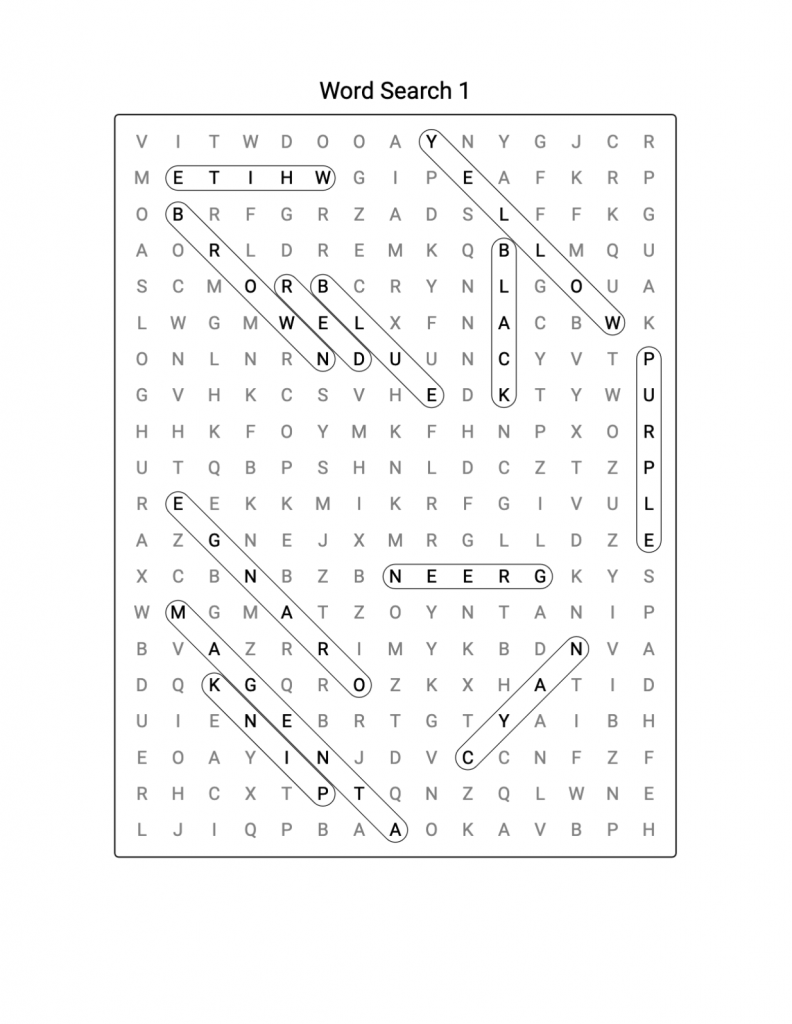
The familiar outline with curved ends remains the default. Choose it for a traditional word search solution page.
Rectangle Outline
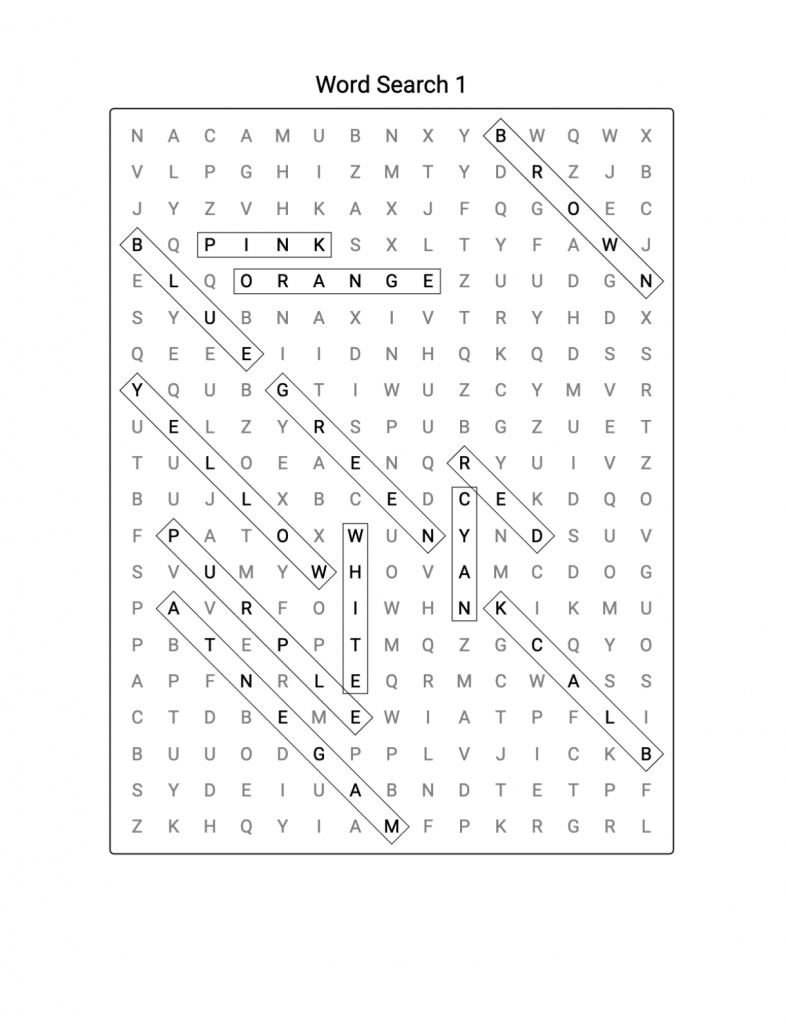
This option surrounds answers with straight-edged rectangles, giving your solution pages a different finish.
Highlight
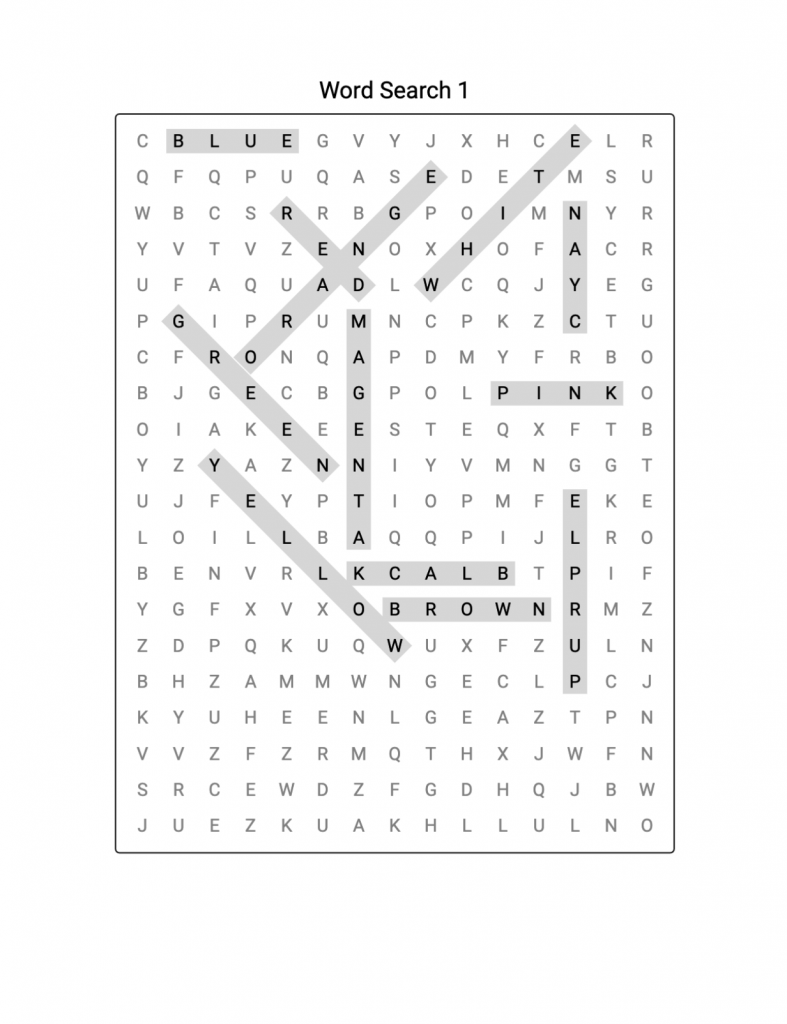
Highlight places a shaded background behind answer letters. It’s an option to try when you want answers to stand out without an outline running around them.
The default highlight color is light gray, and you can change it in Color Settings.
No Marking
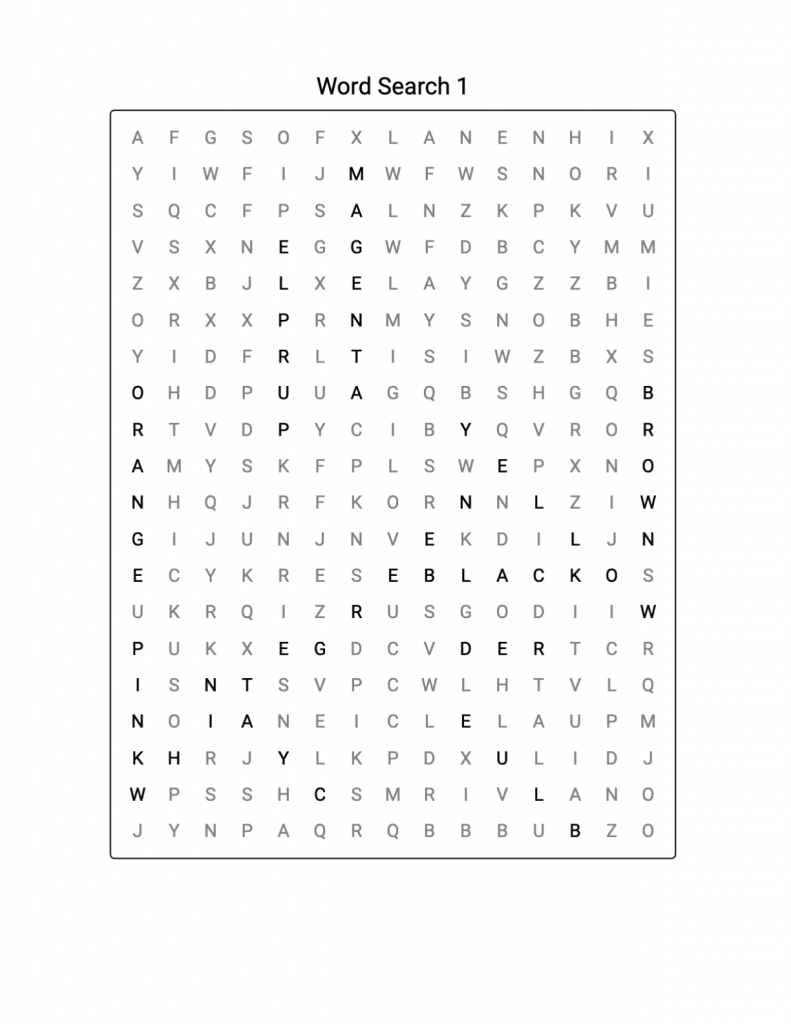
Prefer a simpler solution page? No Marking removes the outlines and highlights.
Answers still use the solution text color, while the remaining letters use the non-solution text color. Choose contrasting colors so the answers are easy to distinguish.
Customize Your Solution Colors
In the Answer Page Settings section of Color Settings, you can choose an outline or highlight color when the corresponding style is selected.
For example, try black solution letters with a light-gray highlight. Or use No Marking with black answer letters and lighter-gray fill letters.
If you’re creating large-print puzzles, compare these styles at your intended print size. Highlight and No Marking give you alternatives to outlined answers.
Save Your Favorite Setup
Word list position, answer-marking style, and marking colors are included in save/load settings. Once you find a combination you like, save it for your next project.
Log in to A Book Creator and try the new options. Which combination will you use for your next puzzle book?